
Overview
The Discover tool helps you explore AI-driven insights from your dataset, revealing key themes, sentiment trends, and factors impacting your key metrics such as NPS, CSAT, or ratings.
What Questions Can This Answer?
Understanding Key Influences on Your Metrics
- What topics, emotions, employee soft skills, themes, or demographics are affecting my NPS/CSAT scores the most?
- How do external factors like geography, weather, seasonal trends, day of the week, or time of day impact consumer sentiment?
- How do operational variables in my dataset relate to overall performance?
Exploring Consumer Sentiment & Feedback
- What keywords, phrases, and topics are most frequently mentioned?
- What themes and emotions emerge from consumer feedback?
- What suggestions are customers providing?
- What questions are customers asking?
- How do different dataset fields relate to sentiment or key performance metrics?
AI-Driven Insights & Recommendations
AI-Powered Topic Discovery
Your file is now loaded, if you aren’t seeing any topics on the Discover page, you’ll want to kick-off the AI-Generated topic creation using the Topic Discovery Wizard. Choose from built-in prompting or customize your prompt.
- Load your dataset into Bellomy AI Analytics.
- Use the Topic Discovery Wizard to generate AI-driven topics based on your unique dataset.
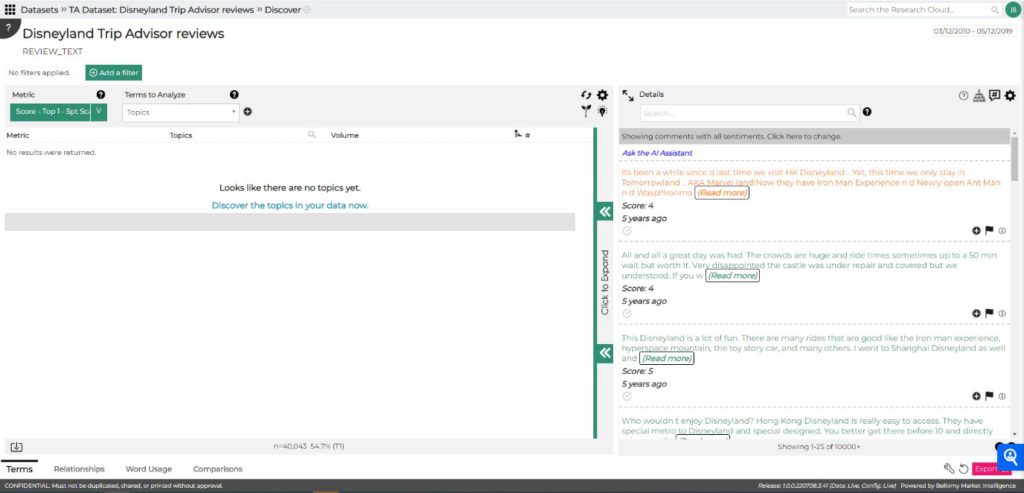
- Choose from built-in prompting or customize your own prompt.
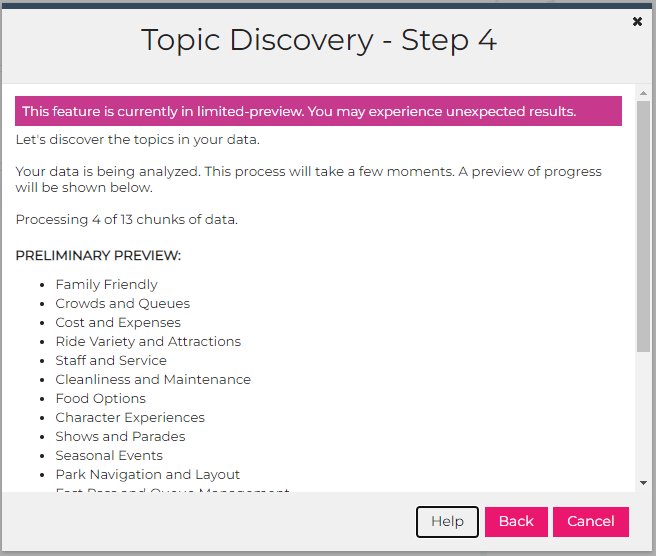
- AI generates key topics, allowing analysis across a range of metrics like customer ratings, impact, and sentiment.
The Topic Discovery generates topics based on each unique dataset provided.
A Closer Look: Features & Controls
Navigating the Discover Tool
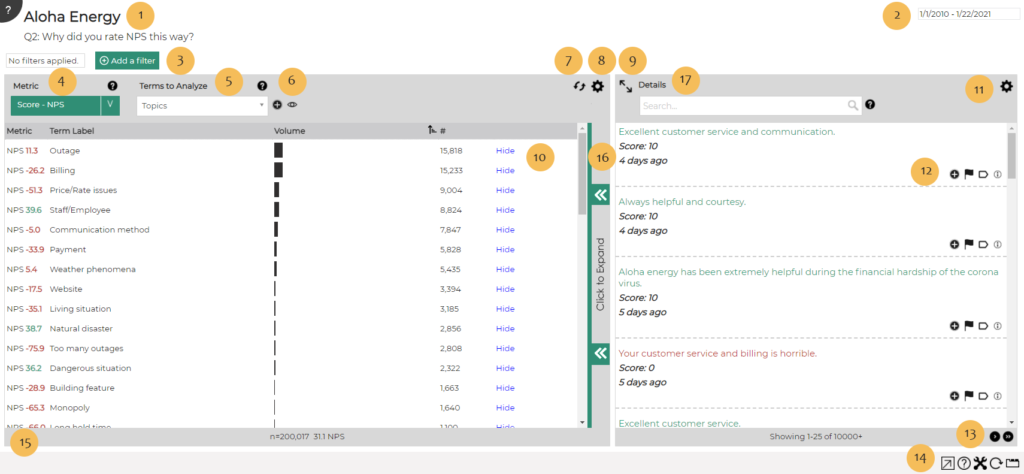
- Dataset Name & Active Comment Group – The name of the dataset and the currently shown question/comment group is shown at the top.
- Date Range Control – If the dataset has a time field, you can adjust the date range to filter insights accordingly.
- Filters – Choose a key metric (e.g., sentiment, CSAT) to analyze alongside specific terms. Learn more: Filtering
- Select a Metric – Choose a key metric (e.g., sentiment, CSAT) to analyze alongside specific terms. Learn more: Understanding Metrics
- Select a Term – Choose a term for analysis. Learn more: Understanding Terms
- Custom Topics & Hidden Terms – Create custom topics or adjust visibility of terms. Learn more here: Creating Custom Topics
- Refresh Data – Update insights after adding new data, adjusting topics, or when collaborating with others.
- Customize the Discover Tool – Configure display settings.Customize the discover tool. Learn more: Configure the Discovery Term Viewer
- Expand the Text Viewer – View and analyze verbatim responses more effectively. Learn more: Text Viewer
- Hide/Unhide a Term or Adjust a Custom Topic – Control which insights are shown.
- Take Action on a Comment – Mark or flag key insights.
- Customize the text viewer – Learn more: Text Viewer
- Take Action on a Comment – Mark or flag key insights. Learn more: Text Viewer
- Search Comments – Locate specific mentions. Learn more: Text Viewer
- Shows the total # of comments and overall metric value for the dataset and current filter.
- Enables further drill-down into the comments.
- Search comments – Learn more: Text Viewer
Exporting & Reporting
- Export comments for deeper offline analysis.
- View total comment counts and overall dataset metric values.
- Drill down into specific comment details.
Understanding the Data & Frequencies
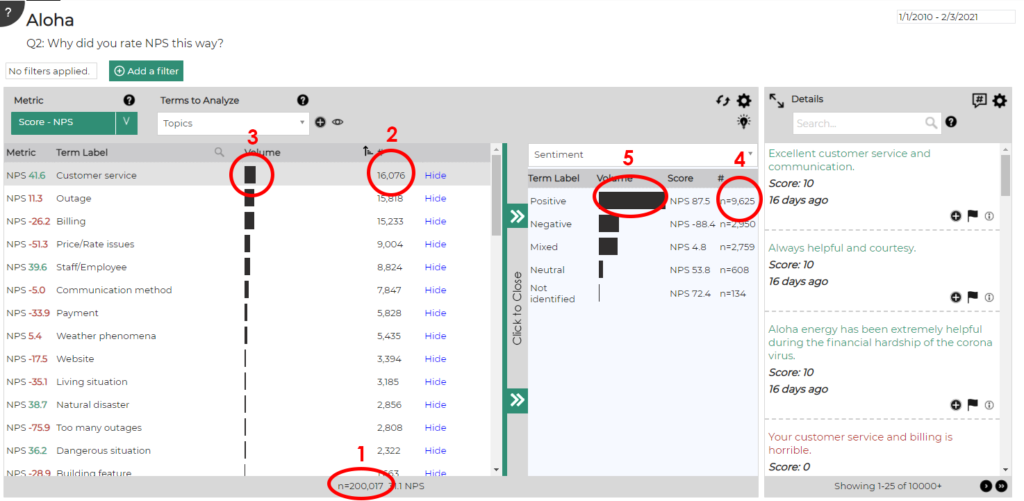
The Discover tool presents five key data points:
1️⃣ Total records in the filtered dataset
2️⃣ Number of records assigned to a given term
3️⃣ Proportion of term mentions relative to total records (#2 ÷ #1 × 100)
4️⃣ Number of records that contain both the selected term and an additional drill-down term
5️⃣ Proportion of #4 compared to #2
Understanding AI-Generated Insights
Now that AI-generated topics are loaded, we can analyze your data across a range of metrics from a standard list including customer ratings, impact, and sentiment – or those that you can configure to your specific needs.
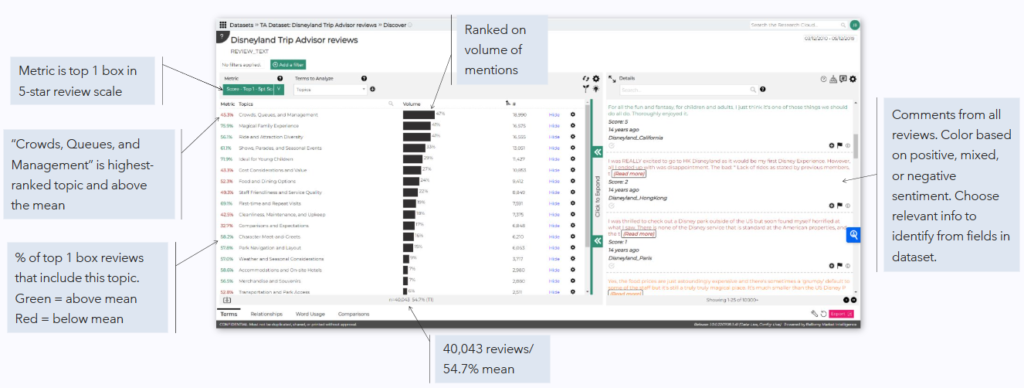
Use the AI Assistant conversational AI to learn more about your data and understand ways to improve.
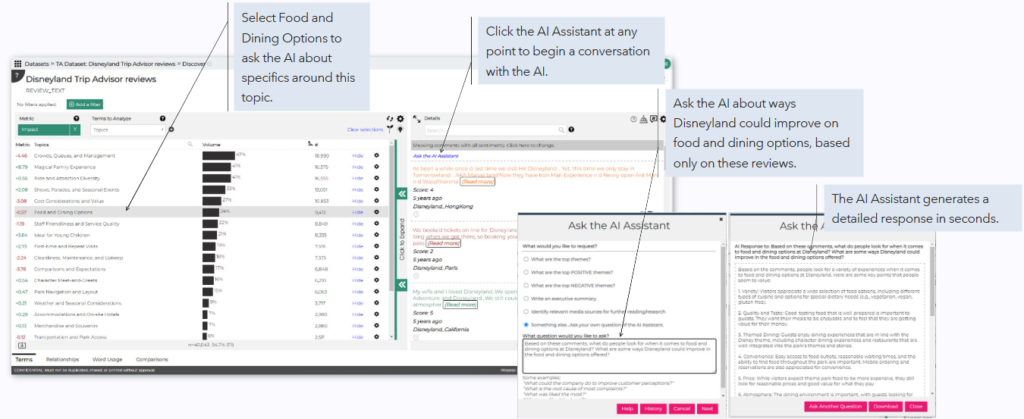
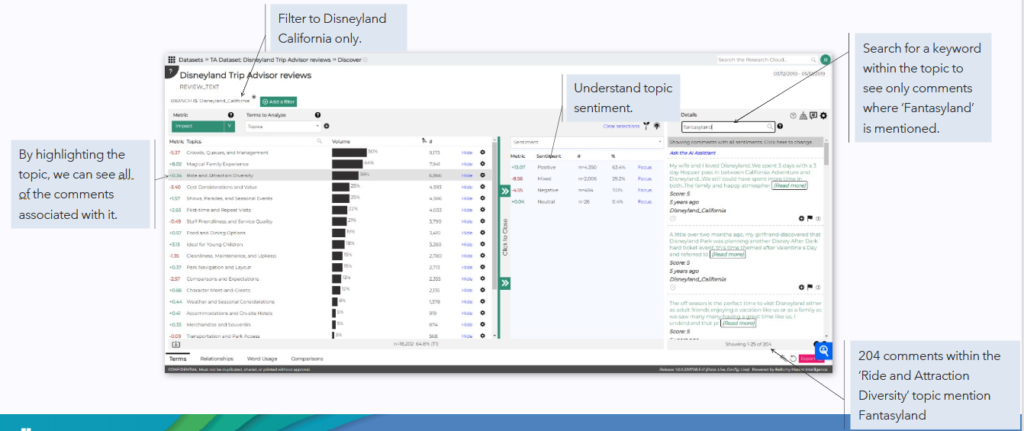
Changing the Metric to Impact reveals more telling insights by calculating the rating by the quantity of mentions for a topic. Now we see the impact that topics such as “Comparisons and Expectations” are having on ratings.

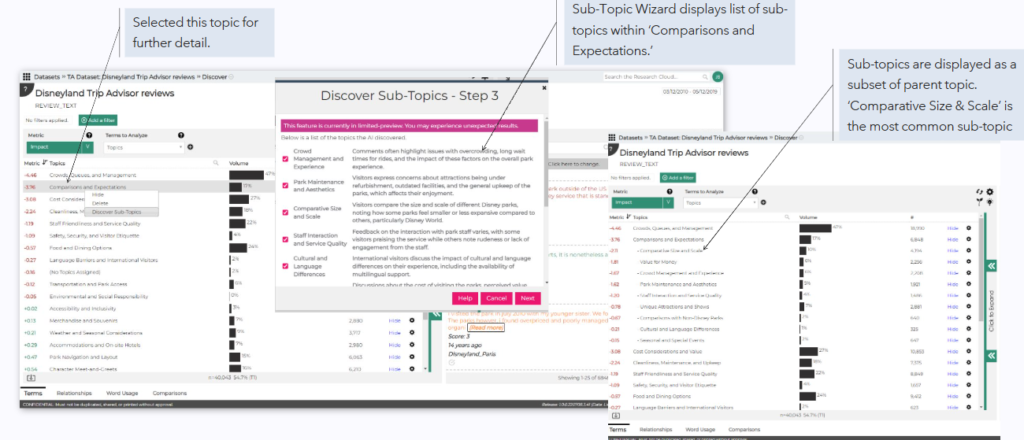
Broad topics often require a more granular analysis. You may want to generate sub-topics to provide more detail.
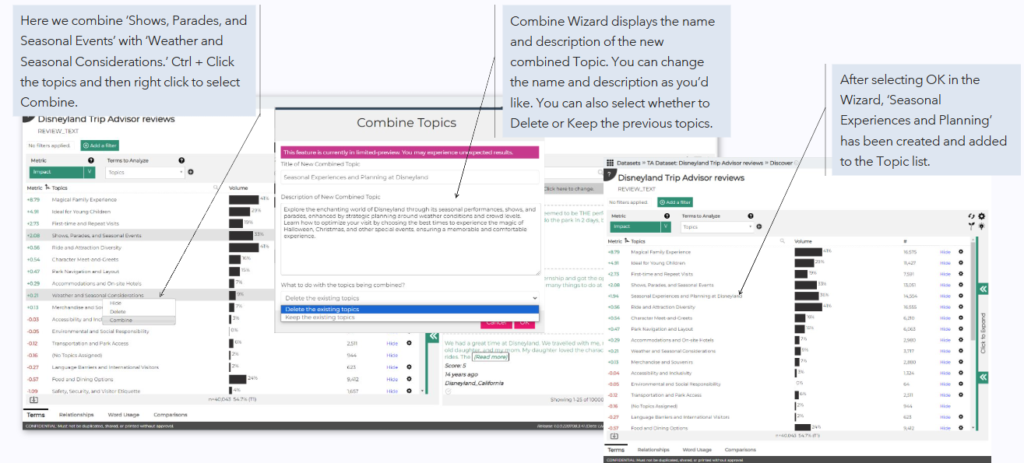
You can also combine topics that seem too similar.
By leveraging Bellomy AI Analytics’ robust filtering and deep-dive functions, we can get more detail by analyzing the review comments.
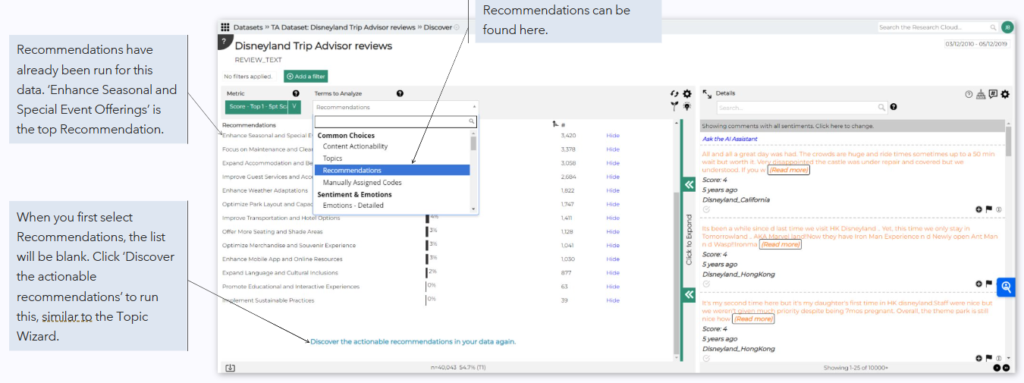
The Recommendations Engine can be found in the Terms to Analyze drop box right under Topics. Recommendations are AI-generated based on customer feedback in the dataset.
Frequently Asked Questions (FAQ)
Q: If I hide a term in the Discover tool, will it be hidden elsewhere (e.g., word usage, relationships, trending)?
A: Yes, hidden terms are removed across all views.
Q: If I hide a term, will it be hidden for other users?
A: No, hidden terms are user-specific. Other users can choose their own hidden terms
Q: Why did my chat session disappear and later re-appear?
A: Chat sessions are tied to the question and topic being explored. This allows you to chat about a question or topic, switch to another question or topic and chat about it, and switch back to the first question or topic so that you can resume that first chat.