
Custom variables allow Bellomy users to extend the use of surveys in crosstabs, dashboards, queries and other RC tools. Custom variables enable the addition of calculated variables to address specific needs common to analyzing survey data. This includes creating custom banners (via multi-punch variables), perforning basic calculations such as index scores and respondent-row-weighted calculations, etc.
Custom variables can be reviewed and defined from the Survey Design -> Custom Variables page in the PM site.
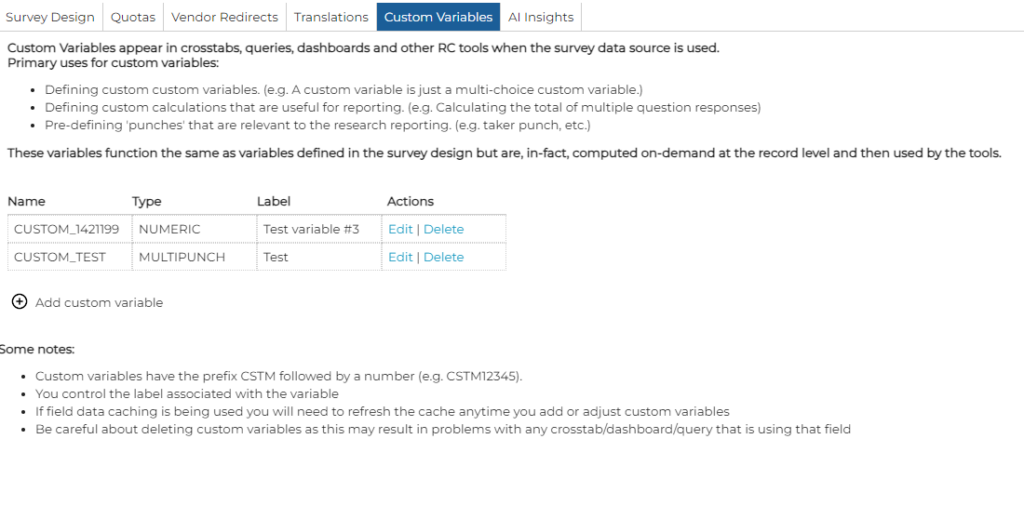
The list of custom variables includes any custom variables created by any Bellomy users (e.g. you see variables created by you and others).
Once created, custom variables automatically appear in the field list for the survey when designing crosstabs, dashboards, queries and other RC tools.
ADDING VARIABLES
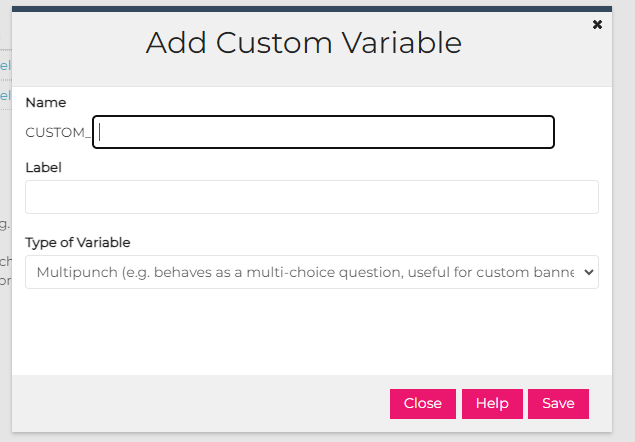
When you add a custom variable you are able to give it a name, a label and a type. The name is the field name you and others will see in the field list in crosstabs/dashboards/queries/etc. The name you choose should be meaningful to you and others and can be up-to 43 characters in length. Custom variable names are always prefixed with CUSTOM_ and may contain letters A-Z, 0-9 and _ (underscore).
The label is the same as any other field label.
Two custom variable types are currently available – MULTIPUNCH and NUMERIC. Multipunch is useful for a range of situations including: defining custom banners, merging data across several close-ended questions/field in the survey, and others. Numeric is useful for simple-to-complex math calculations that need to occur at the survey row level (calculated for each survey record). This may be useful for index score calculations where individaul metrics are weighted within the row, or a range of other needs.
CONFIGURING MULTIPUNCH VARIABLES
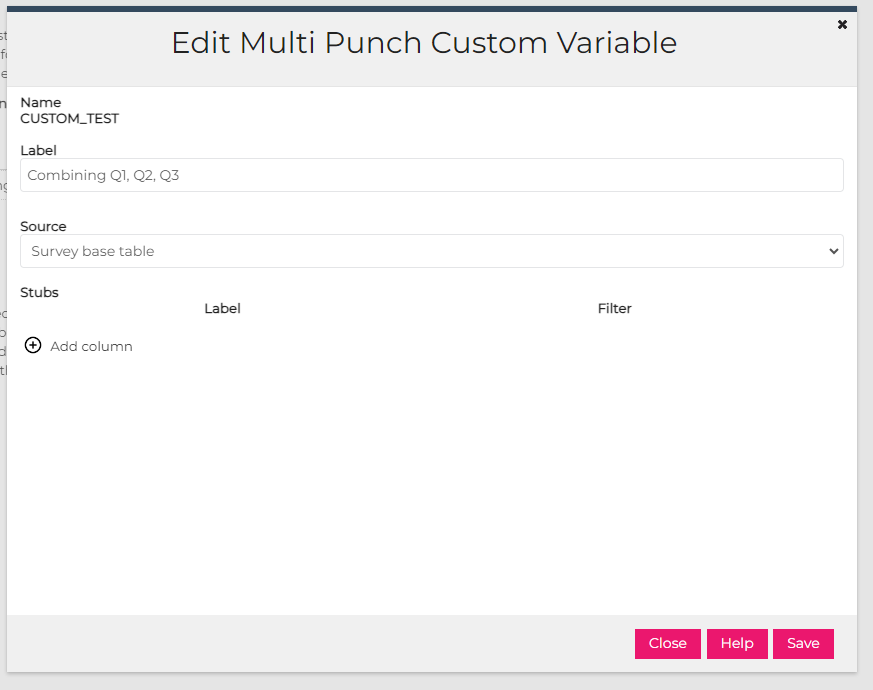
Multi-punch variables created calculated fields that behave like a multi-choice/checkbox question might in the survey. These are useful for defining what may be used as a custom banner, or for combining multiple close ended questions into a single field.
Every custom variable may define its source. By default, this is the base table for the survey. For surveys with loops, you may also choose to source the variable from an instance of the loop.
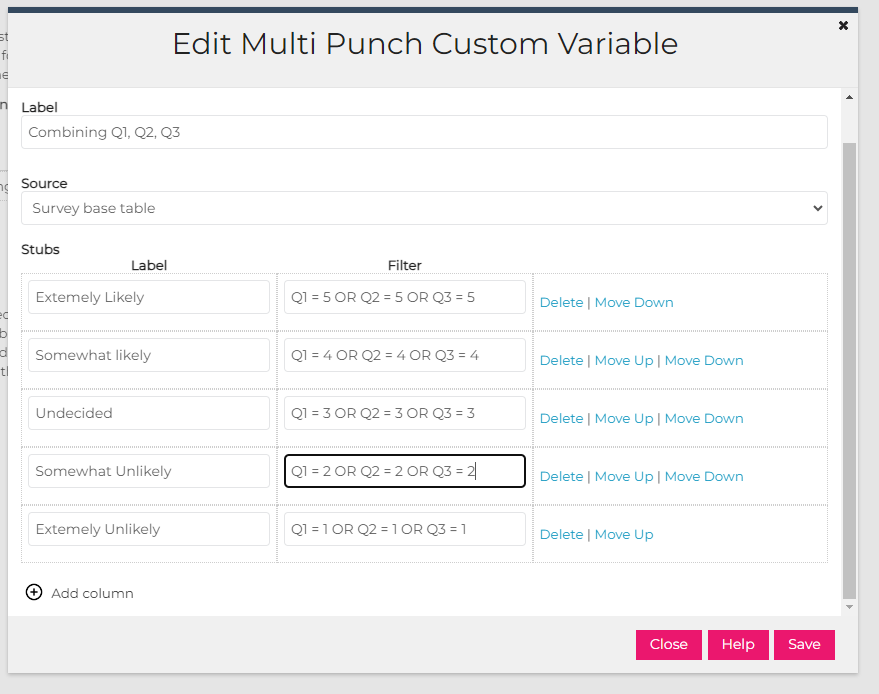
In the example below, Q1, Q2 and Q3 are all single-choice (radio button) questions where only one of these questions was presented to each respondent and we want to combine them for analysis purposes.
Numeric variables are useful for other scenarios where there is a need for some form of mathematical formula to be applied to the respondent data.
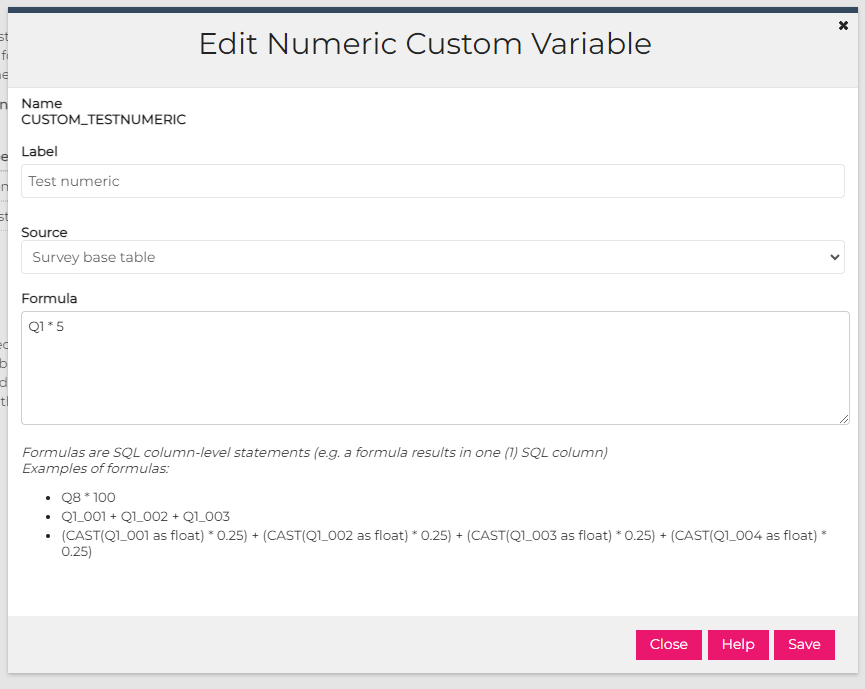
In the above example, we are multiplying the Q1 response by 5.
ADVANCED CAPABILITIES
The filters and formulas used by custom variables enable access to a broad range of capabilities provided by the SQL Server system. This has many implications and allows for a wide range of use cases. Behind the scenes, a custom variable uses SQL to compute the result of the filter or formula in real-time along with any data in the survey.
NULLs in the data
SQL Server handles NULL values in a manner that can lead to confusion for users. This may require some unique FILTER or formula statements to address the presence of NULL values in the raw data.