
Sometimes you need to apply changes to a quantity of records at the same time. The bulk operations tools can help you with this.
To complete this task you will first want to filter the text viewer component to the desired comments. You can perform this operation anywhere the text viewer is visible (e.g. discovery tools, trending, emotions, geography, dates/times, etc.).
NOTE: All records shown by the text viewer will be impacted by bulk operations across all pages of data, not just the current page of records.
Note: It is recommended that only one person perform bulk operations at a time unless you are certain that multiple users are working with completely different records or datasets.
Once you have filtered to the desired records you can continue. To perform this action you need to be in the ‘maximized’ mode of the text viewer. If you are using the Discover Terms tool, you will need to click the arrow icon in the upper-left corner of the text viewer.

Once in ‘maximized’ view, click the bulk actions icon in the upper-right corner of the box.

The bulk actions dialog will appear.
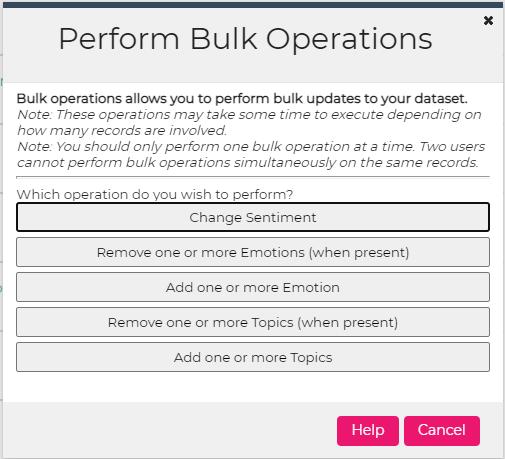
You can choose which action you wish to perform. You can only perform one bulk operation at a time, but you can repeat the process as many times as necessary if there are multiple operations you wish to perform.
Once you select the operation, you will be prompted to make selections relevant to that operation. After making your selections, you will see a summary dialog that looks like this:
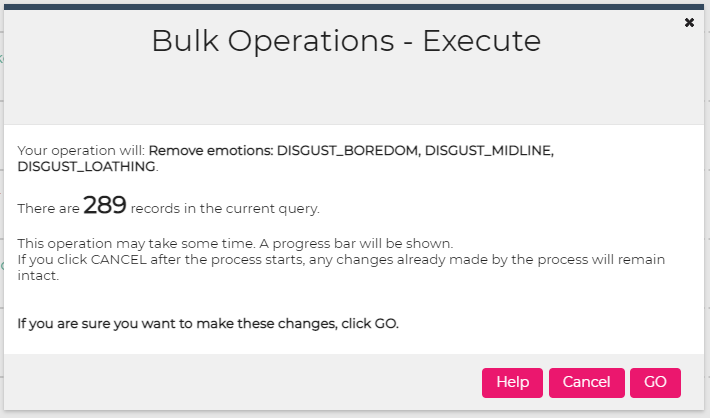
This dialog will identify exactly which changes you are making and how many records will be impacted. Review the information and when you are ready, hit GO.
Bulk operations can take some time to complete. A progress dialog will be displayed that keeps you updated on the process.
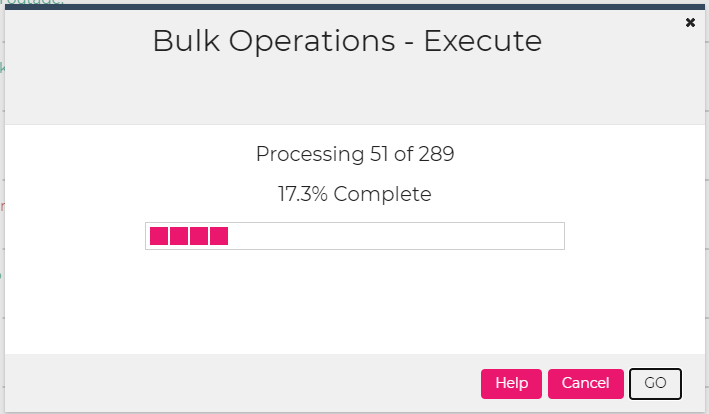
You will see a message when the operation completes. It may take a few seconds or minutes (for operations that impact 1000’s of records) for the changes to be fully reflected. You can use the refresh icon on the discover terms tool to see updated data. In most cases the changes are fully reflected within a few seconds.
Frequently Asked Questions
Q: Can I cancel the operation once it is started?
A: Yes. If you cancel an in-progress operation, the system will stop processing as quickly as possible. Any records that have already been changed will remain changed.