
Headline
Read consumer comments and take action.
What Questions can this Answer?
- What are my customers saying?
- How do I search for comments?
- How can I know all of the information about a comment (e.g. other survey details, etc.)?
- How can I quickly add a comment to a PowerPoint deck for an upcoming presentation?
- I found a consumer comment that needs attention from someone in my organization. How can I create a case from the comment?
- The sentiment, emotion or topics associated with the comment are not what I think they should be. How can I correct that?
- I need to make changes to several comments simultaneously. How do I do that?
More Information
The text viewer component is a key component of the text analytics toolkit. You will encounter this component in almost all areas of the tool. You may first encounter it within the discover terms tool. In that scenario, your first look at it will be in a ‘minimized’ configuration as shown here.
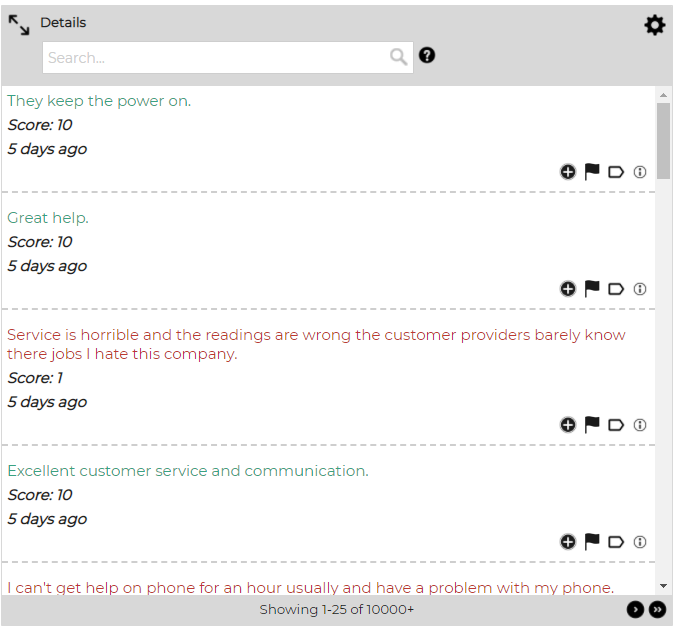
In addition to the ‘minimized’ configuration, the text viewer component usually appears in the ‘maximized’ configuration which appears when drilling down on comments in most of the tools (e.g. dates tools, geography tool, emotions tool, trending tools, etc.) In the maximized configuration it appears as shown below.
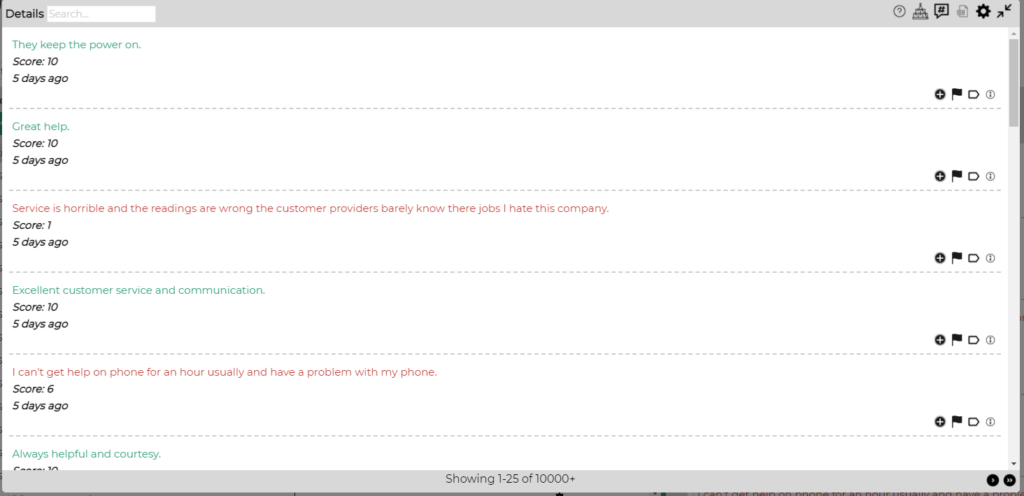
The ‘maximized’ configuration delivers the full text viewer experience, but whether minimized or maximized, the tool enables you to read consumer comments and take action.
Reading Comments
Comments are shown one page at a time. Each page of comments consists of up to 25 comments. You can navigate through the comments using the paging control at the bottom of the viewer as shown below.

Text is shown in one of 4 colors:
- Black – No sentiment was detected within the comment.
- Green – Only positive, or predominantly positive sentiment was detected within the comment
- Red – Only negative, or predominantly negative sentiment was detected within the comment
- Orange – The comment contains both positive and negative sentiment
Searching for Comments
You can use the search function to quickly locate comments. Some things to be aware of:
- Search is not case sensitive.
- You can perform exact phrase match searches by enclosing your search term in double-quotes (e.g. “must match”).
- You can require that more than one term be found by using the AND operator (e.g. term1 AND term 2).
- You can require that at least one term be found by using the OR operator (e.g. term1 OR term 2).
- You can combine exact phrase match with AND or OR queries (e.g. “customer says” AND payment AND lost).
- You cannot combine AND and OR queries.
Customizing the Appearance of the Viewer

Click the gear icon in the upper-right corner to customize the viewer. A dialog like the one shown below will be displayed.

From here you can do the following:
- Customize which fields are displayed in the viewer.
- Customize the order in which fields are viewed.
- Apply an optional prefix to a field that is shown.
When you customize the text viewer, the software will remember your settings each time you return to the dataset. Changes you make here will NOT apply to other users.
Taking Action
Powerful text analytics is great, but when combined with tools that enable meaningful business actions to be taken based on findings, you have a winning combination.
The text viewer component enables the following actions to be taken:
- Add a comment to a showreel. Learn more here: Add a Comment to a Showreel
- Create an insight or closed-loop case record. Learn more here: Create an insight or closed-loop case record
- Adjust the text analytic assignments for one or more record. Learn more here: Adjust Text Analytic Assignments for One or More Records
- Perform bulk operations on comments. Learn more here: Performing Bulk Operations